Linux Networking
The commands you reach for to diagnose and manage Linux networks. ip for interfaces and routes, ss for sockets, dig for DNS, traceroute for paths, and tcpdump for packets.
Every Linux box speaks the network through a small set of tools, and knowing them turns “the network is broken” into a specific, fixable answer. This cheatsheet covers the modern stack: ip for interfaces and routes, ss for sockets, dig for DNS, traceroute for the path, tcpdump for the raw packets, and curl for the application layer.
When something won’t connect, work up the layers. Confirm the interface has an address and a route (ip), check the port is listening (ss), make sure the name resolves (dig), trace where packets die (traceroute), and only then capture the wire (tcpdump) or test the app (curl).
Key features
- One tool per layer:
ipfor L2/L3,ssfor sockets,digfor DNS,tcpdumpfor packets,curlfor HTTP. - Modern replacements:
ipsupersedesifconfig/route, andsssupersedesnetstat. - Ground truth on demand:
tcpdumpshows the actual bytes when higher-level tools disagree. - Scriptable diagnostics:
dig +shortandcurl -wgive clean, parseable output for automation.
No commands found
Try adjusting your search term
Interfaces and Routing
The modern ip command replaces ifconfig and route. It's one tool for addresses, links, and the routing table.
Addresses and Links
Show and change what IPs live on which interface, and bring links up or down.
Show addresses and interface state
Look for UP in the flags and a scope global inet line. A link that's DOWN or missing an address is usually the whole problem.
# Every interface, its addresses, and whether it's UPip addr           # 'ip a' for short
# Just one interfaceip addr show eth0
# Only the link layer (MAC, MTU, state), no IPsip link show- ifconfig comes from the old net-tools package and may not be installed. ip is the modern default everywhere.
Add, remove, and toggle an address
Changes made with ip are live but not persistent. They vanish on reboot unless you write them into your distro's network config.
# Add a second IP to eth0 (needs root)sudo ip addr add 192.168.1.50/24 dev eth0
# Remove it againsudo ip addr del 192.168.1.50/24 dev eth0
# Bounce the interface without a rebootsudo ip link set eth0 downsudo ip link set eth0 up- Persist addresses via netplan, NetworkManager, or systemd-networkd depending on the distro. ip alone is for the running system.
Routing Table
Which gateway handles which destination. Most connectivity bugs show up here as a missing or wrong default route.
Inspect and test routes
'ip route get' is the honest answer. It shows the exact route, source IP, and interface the kernel picks, so you don't have to guess from the table.
# The full routing tableip route          # 'ip r' for short
# Which route would the kernel actually use for this IP?ip route get 1.1.1.1
Add and delete routes
A host with addresses but no default route can talk to its local subnet and nothing else. That's the classic 'DNS works, internet doesn't' setup.
# Set the default gatewaysudo ip route add default via 192.168.1.1
# Route one subnet through a specific gatewaysudo ip route add 10.0.0.0/24 via 192.168.1.254 dev eth0
# Remove a routesudo ip route del 10.0.0.0/24
Sockets and Ports
ss is the modern replacement for netstat. It answers 'what's listening' and 'who's connected' fast, even on busy hosts.
What's Listening
Find which process owns a port before you fight over it.
List listening TCP and UDP ports with the owning process
The -p flag ties each port to a PID and program name, which is how you find the process squatting on a port you need.
# t=TCP, u=UDP, l=listening, n=numeric, p=process (p needs root for other users)sudo ss -tulpn
# Only TCP listenersss -tlnsudo ss -tulpnNetid State Local Address:Port Peer Address:Port Processtcp LISTEN 0.0.0.0:22 0.0.0.0:* users:(("sshd",pid=812,fd=3))tcp LISTEN 127.0.0.1:5432 0.0.0.0:* users:(("postgres",pid=1140,fd=5))- 0.0.0.0 means listening on all interfaces. 127.0.0.1 means localhost only, so it's unreachable from other machines by design.
Filter by state and port
ss has a real filter language, so you can slice by state, port, or address instead of piping netstat through grep.
# Only established connectionsss -t state established
# Everything talking to or from port 443ss -t '( dport = :443 or sport = :443 )'
# Count connections per state (quick health check)ss -s
DNS Lookups
When a name won't resolve, dig is the tool that tells you exactly what the DNS servers are (or aren't) returning.
Querying with dig
dig is scriptable and precise. It shows the actual answer, the authority, and the server that replied.
Basic and short lookups
+short strips everything down to the answer. It's the form you want inside scripts and quick checks.
# Full answer for the A recorddig example.com
# Just the resolved IPs, nothing elsedig +short example.com
# Ask a specific record typedig example.com MXdig example.com TXT
Query a specific server and trace the delegation
@server bypasses your local resolver, so you can tell whether a stale local cache or the real DNS is the problem. +trace shows where a broken delegation breaks.
# Ask a particular resolver instead of the system defaultdig @1.1.1.1 example.com
# Walk the delegation from the root servers downdig +trace example.com
# Reverse lookup: IP back to a namedig -x 93.184.216.34- If 'dig @8.8.8.8' works but a bare 'dig' doesn't, your system resolver or /etc/resolv.conf is the culprit, not DNS itself.
nslookup vs dig
nslookup is everywhere and fine for a quick check, but dig is the tool you want when the answer matters.
Quick checks with nslookup and getent
Use getent when you want the name to resolve exactly how an application will resolve it, including /etc/hosts overrides that dig never reads.
# Simple forward lookupnslookup example.com
# getent resolves the way the OS actually does it,# honoring /etc/hosts and nsswitch.conf (dig ignores both)getent hosts example.com- dig talks straight to DNS and skips /etc/hosts. If a host entry is overriding a name, only getent (or the app) will show it.
Path and Reachability
Is the host up, and where does traffic die on the way there? ping proves reachability, traceroute finds the failing hop.
ping and Reachability
The first thing you run, with the caveat that plenty of networks drop ICMP on purpose.
Ping with a count and timeout
Always use -c in scripts so ping actually exits. A bare ping runs until you Ctrl-C it.
# Send 4 packets and stop, instead of pinging foreverping -c 4 example.com
# Give up on each packet after 2 secondsping -c 4 -W 2 example.com- No reply doesn't always mean down. Cloud security groups and firewalls routinely block ICMP while TCP still works fine.
traceroute and tracepath
Map the hops between you and a destination to see where latency spikes or packets stop.
Trace the path, TCP when ICMP is blocked
Rows of '* * *' mean a hop isn't answering, which is often just a router ignoring probes rather than a real break. Switch to -T to get past filters.
# Classic hop-by-hop tracetraceroute example.com
# Use TCP SYN to port 443 (gets through firewalls that drop UDP/ICMP)sudo traceroute -T -p 443 example.com
# tracepath needs no root and also discovers the path MTUtracepath example.com- mtr combines ping and traceroute into a live, continuously updating view. It's the better tool when you suspect intermittent loss on one hop.
Packet Capture
When you need to see the actual bytes on the wire, tcpdump is the ground truth. Nothing lies at this layer.
Capturing with tcpdump
Capture selectively. An unfiltered capture on a busy host is a firehose you can't read.
Capture by interface, host, and port
-nn turns off DNS and port-name lookups, so tcpdump stays fast and doesn't generate its own traffic while you watch.
# Watch traffic on eth0, don't resolve names/ports (-nn keeps it fast)sudo tcpdump -i eth0 -nn
# Only packets to or from one host on port 443sudo tcpdump -i eth0 -nn host 10.0.0.5 and port 443
# Only inbound HTTP to this boxsudo tcpdump -i eth0 -nn 'tcp dst port 80'- Use '-i any' to capture on all interfaces at once when you're not sure which one the traffic uses.
Write to a file for Wireshark
Capture on the server with -w, then open capture.pcap in Wireshark on your laptop. That's the standard workflow for anything past a quick glance.
# Save raw packets to a pcap (-w), grab 200 then stop (-c)sudo tcpdump -i eth0 -w capture.pcap -c 200 port 443
# Read a saved capture back, with verbose decodingtcpdump -r capture.pcap -nn -vsudo tcpdump -i eth0 -w capture.pcap -c 200 port 443- Add '-s 0' on very old tcpdump versions to capture full packets. Modern versions already default to the whole packet.
HTTP Testing
curl and wget test the network at the application layer, where a working TCP path still hides TLS or HTTP problems.
Testing with curl
curl is the swiss-army knife for HTTP. Headers, timing, and TLS details are all one flag away.
Inspect status, headers, and timing
The -w timing breakdown is how you tell a slow DNS lookup apart from a slow TLS handshake apart from a slow server. It turns 'the site is slow' into a real answer.
# Headers only (HEAD request), follow redirects (-L)curl -sIL https://example.com
# Print just the HTTP status codecurl -s -o /dev/null -w '%{http_code}\n' https://example.com
# Where does the time go? DNS vs connect vs TLS vs transfercurl -s -o /dev/null -w 'dns=%{time_namelookup} connect=%{time_connect} tls=%{time_appconnect} total=%{time_total}\n' https://example.com- -s silences the progress bar, '-o /dev/null' throws away the body so you only see what -w prints. That trio is the standard scripting form.
Force a resolution or skip cert checks while debugging
--resolve hits one specific server without touching DNS, which is how you test a single backend behind a load balancer.
# Test a specific backend by faking DNS just for this requestcurl -sI --resolve example.com:443:10.0.0.7 https://example.com
# Ignore an invalid/self-signed cert (debugging ONLY, never in prod)curl -skI https://localhost:8443- Reach for wget instead when you just want to download a file. 'wget -c URL' resumes a partial download where curl needs -C -.
Was this useful?
Continue on this topic
The same subject, covered a different way from the cheatsheet above.
 Quiz
QuizLinux: System Administration Fundamentals
Test your knowledge of Linux fundamentals with a quiz covering essential commands, file system navigation, permissions, process management, package managers, and Linux administration best practices.
 Glossary
Networking Fundamentals
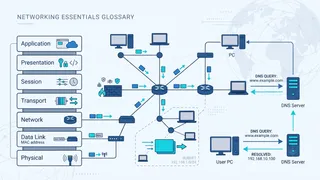
Core networking terms every developer and engineer should know, covering IP addressing, DNS, protocols, routing, and the OSI model.
 Code snippet
Essential Bash Variables for Every Script
Master the most useful Bash special parameters and environment variables. Learn how to use $0, $?, $@, $UID, $EUID, and XDG variables to write more reliable and portable scripts.
 Article
How To Install Docker On Linux In 4 Easy Steps
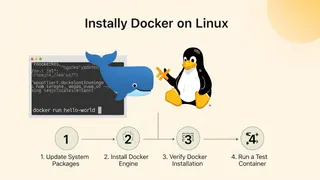
A step-by-step guide to installing Docker on Linux in 4 steps, from updating the package index to running your first Docker container.
You might also enjoy
More posts on similar topics
Netstat
- Mohammad Abu Mattar
- Terminal
- System Administration
- Linux
- Networking
- Tools
This netstat cheatsheet covers six categories, with worked examples and troubleshooting steps in each.
AWK
- Mohammad Abu Mattar
- Terminal
- Text Processing
- Linux
- Command Line
- Development Tools
- Scripting
AWK complete reference guide Quick start Print entire file awk '{ print }' file.txt# Print specific column awk '{ print $1 }' file.txt# Print lines matching pattern awk '/patter
Bash
- Mohammad Abu Mattar
- Scripting
- Shell
- Linux
- Unix
- Command Line
- Automation
Bash is a Unix shell and command language written by Brian Fox for the GNU Project as a free software replacement for the Bourne shell. The sections below cover Bash commands, syntax, and examples.
Chmod
- Mohammad Abu Mattar
- Terminal
- Programming
- Linux
- File Management
- Tools
Complete chmod reference covering file permissions, recursive changes with -v and -c, reference mode, logical operators, batch operations, practical examples, and security best practices for Linux fil
Cron
- Mohammad Abu Mattar
- Terminal
- System Administration
- Linux
- Scheduling
- Automation
- Tools
Quick reference Field layout Min Hour Day Month Weekday Command* /path/to/command ┬ ┬ ┬ ┬ ┬ │ │ │ │ └───── Weekday (0=Sunday,
Find
- Mohammad Abu Mattar
- Terminal
- Programming
- Linux
- File Operations
- Tools
Best practices for find command usageAlways quote patterns to prevent shell expansion of special characters Use -type f first in find expressions for optimal performance **Prune hea
6 related posts