jq
A jq reference for engineers who live in JSON APIs and AWS CLI output. Field selection, array iteration, select and conditionals, map and reduce, string interpolation, @tsv and @csv, and the flags that make jq safe inside a shell script.
jq clicked for me the day I stopped thinking of it as a JSON string transformer. It is a stream of values, and every filter takes a stream in and emits a stream out. That one idea explains the parts that otherwise look arbitrary, including why .[] behaves like a loop and why select can make a value disappear.
Two consequences fall out of that model. Piping into a filter is not iteration syntax, it is just a stream being consumed, which is why .[] | .name and .[].name are the same thing. And filtering is not a feature, it is a filter that sometimes emits zero values, which is exactly what select does.
Most of my jq use is against the AWS CLI, where there is a second filtering mechanism competing for the same job.
The reference below is grouped the way the work splits in practice: getting at fields, filtering them down, reshaping what survives, aggregating, and then handing the result back to the shell.
No commands found
Try adjusting your search term
Selecting fields
Reaching into an object, safely, including when the key might not be there.
Paths and nesting
The identity filter, plain keys, nested keys, and keys that need quoting.
Pretty-print without changing anything
`.` is the identity filter. It emits its input unchanged, and jq pretty-prints by default, so this is the shortest JSON formatter you have.
jq . data.json{"name":"api","port":8080}{ "name": "api", "port": 8080}- Add `-S` to sort object keys, which makes two JSON documents diffable.
- `-c` prints compact single-line output, which is what you want when piping into another tool or writing JSON Lines.
Nested keys, and keys that are not identifiers
Chain keys with dots. Anything containing a dash, a space, or a leading digit has to go through the bracket form.
jq '.server.tls.enabled' config.jsonjq '.["content-type"]' headers.jsonjq '.a.b.c' data.json{"server":{"tls":{"enabled":true}}}true- `.foo-bar` is parsed as `.foo` minus `bar`, which is a confusing arithmetic error rather than a syntax error.
- Always single-quote the filter in a shell. Double quotes let the shell expand `$` and backticks inside your jq program.
Missing keys, and how not to crash
A missing key gives `null`. Indexing the wrong *type* is a hard error, and `?` is what turns that error back into `null`.
# null, no error: a missing key is nulljq '.nope' <<< '{"a":1}'
# error: cannot index a string with "b"jq '.a.b' <<< '{"a":"hello"}'
# null, no error: ? swallows the type errorjq '.a.b?' <<< '{"a":"hello"}'
# a default instead of nulljq '.port // 8080' <<< '{}'nulljq: error: Cannot index string with "b"null8080- `//` is the alternative operator. It substitutes when the left side is `null` or `false`, so `.count // 0` also replaces a legitimate `false`.
- Prefer `?` narrowly. Wrapping a whole filter in `?` hides real bugs along with the one you meant to tolerate.
Arrays and slices
Iteration, indexing from either end, and slicing.
Iterate, index, and slice
`.[]` emits each element as its own value, which is why the first command prints three lines rather than one array.
jq '.[]' <<< '[10,20,30]' # each element, separatelyjq '.[0]' <<< '[10,20,30]' # 10jq '.[-1]' <<< '[10,20,30]' # 30, counting from the endjq -c '.[1:3]' <<< '[10,20,30,40]' # [20,30]jq 'length' <<< '[10,20,30]' # 31020301030[20,30]3- Slices are half-open, so `.[1:3]` is elements 1 and 2. Same convention as Python.
- `.[]` on an object emits its *values*, not its keys. That is often exactly what you want.
Collect a stream back into an array
Square brackets around a filter collect everything it emits into a single array. This is the fix for most "jq produced invalid JSON" complaints.
# three separate valuesjq '.[] | .name' <<< '[{"name":"a"},{"name":"b"}]'
# one array, because of the surrounding bracketsjq -c '[.[] | .name]' <<< '[{"name":"a"},{"name":"b"}]'
# same thing, shorterjq -c '[.[].name]' <<< '[{"name":"a"},{"name":"b"}]'"a""b"["a","b"]["a","b"]- Two JSON values printed one after another is not invalid output, it is a valid JSON stream. It is only invalid if the consumer expected one document.
- Use `-s` (slurp) to do the reverse: read a whole stream of input documents into one array before the filter runs.
Filtering and tests
Keeping the values you want, using select, conditionals, and membership tests.
select and conditionals
The filter that emits nothing when its test fails.
Keep matching values
`select` passes its input through when the test is truthy and emits nothing at all when it is not. Nothing is removed, some values simply never arrive.
jq -c '.[] | select(.state == "running")' instances.jsonjq -c '.[] | select(.cpu > 80)' metrics.jsonjq -c '.[] | select(.name | startswith("prod"))' apps.jsonjq -c '.[] | select(.tags | index("db"))' hosts.json[{"state":"running","id":1},{"state":"stopped","id":2}]{"state":"running","id":1}- Only `false` and `null` are falsy in jq. Zero and the empty string are both truthy, which differs from most shells.
- Combine tests with `and`, `or`, `not`. Note that `not` is a filter you pipe into: `select(.x | not)`.
Regular expressions and case-insensitive matching
`test` returns a boolean. `match` returns capture details, and `capture` returns named groups as an object.
jq -r '.[] | select(.name | test("^web-[0-9]+$")) | .name' hosts.jsonjq -r '.[] | select(.msg | test("timeout"; "i")) | .msg' logs.json- The second argument holds flags. `i` for case-insensitive, `x` for extended whitespace-insensitive patterns.
- jq uses Oniguruma regular expressions, which are close to PCRE. Very old jq builds compiled without regex support at all.
if, then, else as a value
An `if` in jq is an expression that produces a value, so it can sit anywhere a value can. The `end` is required.
jq -r '.[] | if .cpu > 80 then "HOT \(.host)" elif .cpu > 50 then "warm \(.host)" else "ok \(.host)" end' metrics.jsonHOT web-1warm web-2ok web-3- `else` is optional in modern jq. Omitting it passes the input through unchanged when no branch matches, which is occasionally what you want and often a surprise.
keys, values, has, and length
Asking a document about its own shape, which is most of what exploratory jq is for.
What is in here?
`length` is polymorphic: element count for an array, key count for an object, character count for a string, absolute value for a number, and 0 for null.
jq -c 'keys' <<< '{"b":1,"a":2}' # ["a","b"], sortedjq -c 'keys_unsorted' <<< '{"b":1,"a":2}' # ["b","a"], document orderjq -c '[.[]]' <<< '{"a":1,"b":2}' # [1,2], the valuesjq 'has("port")' <<< '{"port":80}' # truejq 'length' <<< '{"a":1,"b":2}' # 2jq -r 'type' <<< '[1,2]' # array["a","b"]["b","a"][1,2]true2array- `has` takes a key name for objects and an index for arrays. `in` is the same test with the arguments the other way round.
- `keys` sorts. Use `keys_unsorted` when document order matters, and note it is also faster.
Find the shape of an unfamiliar API response
This is the first thing to run against an API you have not seen before. It replaces scrolling through 400 lines of pretty-printed JSON.
# every distinct path in the document, as dotted stringsjq -r '[paths | join(".")] | unique | .[]' response.json
# what type does each top-level field hold?jq -r 'to_entries[] | "\(.key): \(.value | type)"' response.jsonid: numbername: stringtags: arrayowner: object- `paths` emits every path as an array of keys and indices. `leaf_paths` restricts it to paths ending at a scalar.
- `to_entries` converts an object into an array of `{key, value}` pairs, which is how you iterate an object while keeping its keys.
Transforming
Reshaping values with map, object construction, and string interpolation.
map, map_values, and building objects
Applying a filter to every element, and assembling a new shape from the pieces.
map versus .[]
`map(f)` is just `[.[] | f]`. Knowing that is enough to stop guessing which one you need.
# map keeps the array wrapperjq -c 'map(.v)'        <<< '[{"v":1},{"v":2}]'   # [1,2]
# .[] does notjq -c '.[] | .v'       <<< '[{"v":1},{"v":2}]'   # 1 then 2
# map_values works on an object, preserving its keysjq -c 'map_values(. * 2)' <<< '{"a":1,"b":2}' # {"a":2,"b":4}[1,2]12{"a":2,"b":4}- `map` on an object returns an *array* of transformed values and throws the keys away. `map_values` is the one that keeps them.
- `map(select(f))` is the idiomatic way to filter and stay inside an array.
Build exactly the shape you want
Object construction is the most useful thing jq does with AWS output: turn a deeply nested response into a flat record you can feed to anything else.
jq -c '.Reservations[].Instances[] | { id: .InstanceId, type: .InstanceType, az: .Placement.AvailabilityZone, name: ((.Tags // []) | from_entries | .Name // "untagged")}' instances.json{"id":"i-0abc123","type":"t3.medium","az":"eu-west-1a","name":"web-1"}- AWS returns tags as `[{"Key":"Name","Value":"web-1"}]`. That is not `from_entries` shape, which wants lowercase `key`/`value`. jq accepts both `Key`/`Value` and `key`/`value`, which is a genuinely helpful special case.
- `{id: .InstanceId}` needs the colon form. `{InstanceId}` is shorthand that keeps the original key name.
Rename or rewrite every key
`with_entries(f)` is `to_entries | map(f) | from_entries`, so `f` sees each pair as a `{key, value}` object and can change either side.
# snake_case every key at the top leveljq -c 'with_entries(.key |= (gsub("(?<c>[A-Z])"; "_\(.c | ascii_downcase)") | ltrimstr("_")))' \ <<< '{"InstanceId":"i-1","InstanceType":"t3.micro"}'{"instance_id":"i-1","instance_type":"t3.micro"}- `|=` updates a path in place. `=` replaces it with a value computed against the *original* input, which is a subtle and important difference.
- This only touches the top level. Recursive renaming needs `walk`.
String interpolation and output formats
Producing text rather than JSON, which is usually the last step of a shell pipeline.
Interpolate values into a string
Anything inside `\( )` is a jq filter, not just a variable, so you can compute in place.
jq -r '.[] | "\(.host) is at \(.cpu)% cpu"' metrics.jsonjq -r '.[] | "\(.name): \(.tags | length) tags"' apps.jsonweb-1 is at 91% cpuweb-2 is at 44% cpu- `-r` is what strips the surrounding quotes. Without it every line comes out as a quoted JSON string.
- Interpolating an object or array gives you its JSON text, which is handy for logging and awful for parsing.
Tabular output for the rest of your pipeline
`@tsv` and `@csv` take an array and emit one properly escaped line. They handle embedded quotes and tabs, which a hand-rolled `join` does not.
jq -r '.[] | [.id, .name, .cpu] | @tsv' metrics.jsonjq -r '.[] | [.id, .name] | @csv' metrics.jsonjq -r '.[] | @base64' secrets.jsonjq -rn --arg q 'a b' '@uri "?search=\($q)"'i-1 web-1 91"i-1","web-1"?search=a%20b- `@tsv` output is what `cut -f`, `awk -F"\t"` and `while IFS=$'\t' read` expect, so this is the usual handover point back to the shell.
- `@csv` refuses non-scalar values. Stringify first with `map(tostring)` if a field might be an object.
Pass shell values in safely
`--arg` always produces a string. `--argjson` parses its value as JSON, which is how you pass numbers and booleans.
# right: --arg passes a string, quoted and escaped for youjq --arg env "prod" '.[] | select(.env == $env)' apps.json
# right: --argjson passes a number, boolean, or objectjq --argjson min 80 '.[] | select(.cpu > $min)' metrics.json
# wrong: string interpolation by the shell, and an injection waiting to happenjq ".[] | select(.env == \"$ENV\")" apps.json- A value containing a quote or a backslash breaks the interpolated form and can change what the filter does. `--arg` cannot.
- `-n` starts with `null` as input rather than reading stdin, which is how you build JSON entirely from arguments.
Aggregating
Turning many values into one, with reduce, group_by, and the arithmetic builtins.
reduce, foreach, and the shortcuts
Accumulating across a stream, plus the builtins that cover the common cases without a reduce.
Use the builtin before reaching for reduce
`add` sums, `group_by` buckets after sorting by the key, and `unique` sorts and dedupes. Most aggregation you need is already a builtin.
jq '[.[].bytes] | add' <<< '[{"bytes":10},{"bytes":32}]' # 42jq '[.[].cpu] | add / length' <<< '[{"cpu":40},{"cpu":60}]' # 50jq '[.[].cpu] | max' <<< '[{"cpu":40},{"cpu":60}]' # 60jq -c 'group_by(.az) | map({az: .[0].az, n: length})' instances.jsonjq -c 'map(.type) | unique' instances.json425060[{"az":"eu-west-1a","n":3},{"az":"eu-west-1b","n":1}]["m5.large","t3.medium"]- `add` on an empty array returns `null`, not `0`. Write `(add // 0)` when the array can be empty.
- `group_by` sorts first, so the buckets come out in key order and the cost is a sort. `unique_by(f)` is the same idea for dedup.
reduce, when you genuinely need an accumulator
`reduce STREAM as $var (INIT; UPDATE)` runs UPDATE once per value with `.` bound to the accumulator, and emits only the final result.
# total bytes per host, in one passjq -c 'reduce .[] as $row ({}; .[$row.host] += $row.bytes )' traffic.json[{"host":"a","bytes":10},{"host":"b","bytes":5},{"host":"a","bytes":7}]{"a":17,"b":5}- `+=` on a missing key works because `null + 10` is `10` in jq. That is what makes this pattern short.
- `foreach` is the same form but emits the accumulator after *every* step, which is how you produce running totals.
A running total, with foreach
`foreach` takes a third argument, the extract expression, which decides what gets emitted at each step.
jq -r 'foreach .[] as $r (0; . + $r.bytes; "\($r.host)\t\(.)")' traffic.jsona 10b 15a 22- Use `reduce` for a single answer and `foreach` for a per-step trace. Reaching for `foreach` and discarding all but the last value is a `reduce`.
In real pipelines
jq with curl, with the AWS CLI, in shell scripts, and in CI.
With curl and HTTP APIs
Handling paginated APIs, JSON Lines, and error responses.
Filter an API response
`-sS` keeps curl quiet but still reports errors. `[:10]` slices the first ten characters off the timestamp, since string slicing works the same way as array slicing.
curl -sS https://api.github.com/repos/jqlang/jq/releases \ | jq -r '.[] | select(.prerelease == false) | "\(.tag_name)\t\(.published_at[:10])"' \ | head -5jq-1.7.1 2023-12-13jq-1.7 2023-09-07- Add `--fail` to curl so an HTTP 500 becomes a non-zero exit instead of an error document that jq then fails to parse.
- jq on an HTML error page gives "parse error: Invalid numeric literal", which is confusing until you realise it is reading `<html>`.
Walk a paginated API
`// empty` is the trick: when `.next` is absent, jq emits nothing, `$url` becomes the empty string, and the loop ends.
url='https://api.example.com/items?limit=100'while [ -n "$url" ]; do body=$(curl -sS --fail "$url") printf '%s' "$body" | jq -c '.items[]' url=$(printf '%s' "$body" | jq -r '.next // empty')done- `empty` emits zero values, so with `-r` the command substitution captures nothing. `// null` would print the string "null" and loop forever.
- Output is JSON Lines, one item per line, which streams into `while read` or straight into a file.
Read JSON Lines back in
Without `-s`, jq applies the filter to each line independently. With it, the whole file becomes one array first.
# one document per line: jq handles this nativelyjq -r 'select(.level == "error") | .msg' app.jsonl
# to aggregate across all lines, slurp them into an array firstjq -s 'group_by(.level) | map({(.[0].level): length}) | add' app.jsonl{"error":12,"info":840,"warn":31}- Structured application logs are almost always JSON Lines, which makes jq the fastest available log query tool on a single host.
- `{(.[0].level): length}` needs the parentheses. A computed object key without them is a syntax error.
With the AWS CLI
Where jq fits next to --query, and the AWS-specific shapes worth memorising.
jq or --query
`--query` is filtering on the way out, which matters on large accounts. jq is the one that can interpolate, compute, and default a missing tag.
# --query: JMESPath, evaluated by the AWS CLI, and can reduce the payloadaws ec2 describe-instances \  --query 'Reservations[].Instances[].[InstanceId,State.Name]' \  --output text
# jq: full language, runs locally, does everything --query cannotaws ec2 describe-instances --output json \ | jq -r '.Reservations[].Instances[] | select(.State.Name == "running") | [.InstanceId, .InstanceType, ((.Tags // []) | from_entries | .Name // "-")] | @tsv'i-0abc123 t3.medium web-1i-0def456 m5.large worker-2- The CLI follows pagination for you and returns one merged document, so jq sees every page. A hand-rolled curl loop does not.
- Combining them is normal: `--query` to drop the fields you will never need, jq to shape what is left.
The AWS tag shape, once and for all
`from_entries` understands AWS's capitalised `Key`/`Value` pairs as well as the lowercase form, so no renaming step is needed.
# AWS gives:  [{"Key":"Name","Value":"web-1"},{"Key":"env","Value":"prod"}]# you want:   {"Name":"web-1","env":"prod"}jq -c '.Reservations[].Instances[] | (.Tags // []) | from_entries' out.json
# find every resource missing a required tagjq -r '.Reservations[].Instances[] | select((.Tags // []) | from_entries | has("owner") | not) | .InstanceId' out.jsoni-0def456i-0ghi789- Always `(.Tags // [])`. An untagged resource has no `Tags` key at all, and `.Tags | from_entries` on null is an error.
- This one-liner is the basis of most tag-compliance checks people write a whole tool for.
Chain into another AWS command
Server-side `--filters` first, jq to extract the IDs, `xargs` to batch them within the API limit.
# stop every instance tagged env=dev, safelyaws ec2 describe-instances \ --filters 'Name=tag:env,Values=dev' 'Name=instance-state-name,Values=running' \ --output json \ | jq -r '.Reservations[].Instances[].InstanceId' \ | xargs -r -n 20 aws ec2 stop-instances --instance-ids- `xargs -r` does nothing when the input is empty, which stops the command running with no arguments and failing confusingly.
- Prefer `--filters` over filtering in jq when the API supports it. It is faster, cheaper, and does not depend on your filter being right.
Was this useful?
Continue on this topic
The same subject, covered a different way from the cheatsheet above.
 Article
10+ Secret Git Commands That Will Save Hours Every Week
Discover 10+ secret Git commands that will save hours every week! Learn advanced Git techniques for undoing mistakes, managing commits, automating workflows, and optimizing repositories. Perfect for DevOps and GitHub users.
 Quiz
QuizLinux: System Administration Fundamentals
Test your knowledge of Linux fundamentals with a quiz covering essential commands, file system navigation, permissions, process management, package managers, and Linux administration best practices.
 Case study
A Service Mesh Rollout That Was Worth It
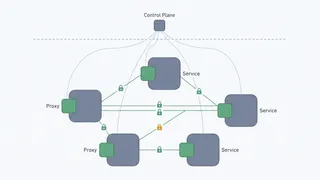
Istio across 34 services on EKS: what mTLS, traffic shifting and free golden signals actually bought us, what the sidecars cost in memory and upgrade pain, and the two answers that would have made the whole thing a mistake.
 Flashcards
Docker and Container Fundamentals Flashcards
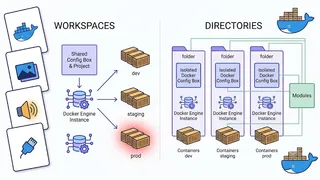
A spaced-repetition deck covering images, containers, Dockerfiles, volumes, networking, Compose, and registries.
You might also enjoy
More posts on similar topics
Python Virtual Environments Cheatsheet
- Mohammad Abu Mattar
- Python
- Development Tools
- Dependency Management
A fast reference for keeping Python projects isolated and reproducible. It covers creating and activating environments with venv, installing packages with pip, locking dependencies with requirements f
Git
- Mohammad Abu Mattar
- Version Control
- Git
- SCM
- Collaboration
- Development Tools
Git is a distributed version control system. Developers use it to track code changes, collaborate with teams, and manage project history. Most software teams build their workflow around it. Key co
Screen
- Mohammad Abu Mattar
- Terminal
- Screen
- Tools
- Development
- System Administration
Getting started GNU Screen is a terminal multiplexer that gives you:Sessions: Full terminal environments that persist even if you disconnect Windows: Multiple terminals (tabs) within
Tmux
- Mohammad Abu Mattar
- Terminal
- Tmux
- Tools
- Development
- System Administration
Tmux is a terminal multiplexer for managing multiple terminal sessions, windows, and panes within a single screen. This cheatsheet covers the commands, keybindings, and configuration options for every
Vim
- Mohammad Abu Mattar
- Editor
- Text Editor
- Terminal
- Command Line
- Productivity
Vim is a highly configurable text editor built to make creating and changing any kind of text very efficient. It is included as "vi" with most UNIX systems. The sections below cover Vim commands, sho
VS Code
- Mohammad Abu Mattar
- Editor
- Text Editor
- Developer Tools
- Productivity
- Programming
- Shortcuts
A quick reference for Visual Studio Code: keyboard shortcuts, editor features, and working habits for editing and navigation.
6 related posts